
How to Use Concrete Cost Pro
Everything runs in your browser, with no account. Here's the whole workflow, with real screenshots of every step.
Don't have Concrete Cost Pro yet? See what's included.
Steps 1–2 happen once. Steps 3–6 repeat for every job.
The "Why it matters" notes below describe how each step is designed to help protect your margin. It's not a guaranteed result. What you actually charge, and what a job actually costs, is always your call.
- 1
Unlock your license
After purchase, you land back on the site already unlocked, and a welcome email arrives with your license key. That key is your only "account": no password, no login. Save the email, since it's how you get back in on a new device or after clearing your browser.
Why it matters: There is no recurring software subscription. Your job margin still depends on the agreed selling price and the actual costs of the work.
- 2
Set up your business profile and catalog, once
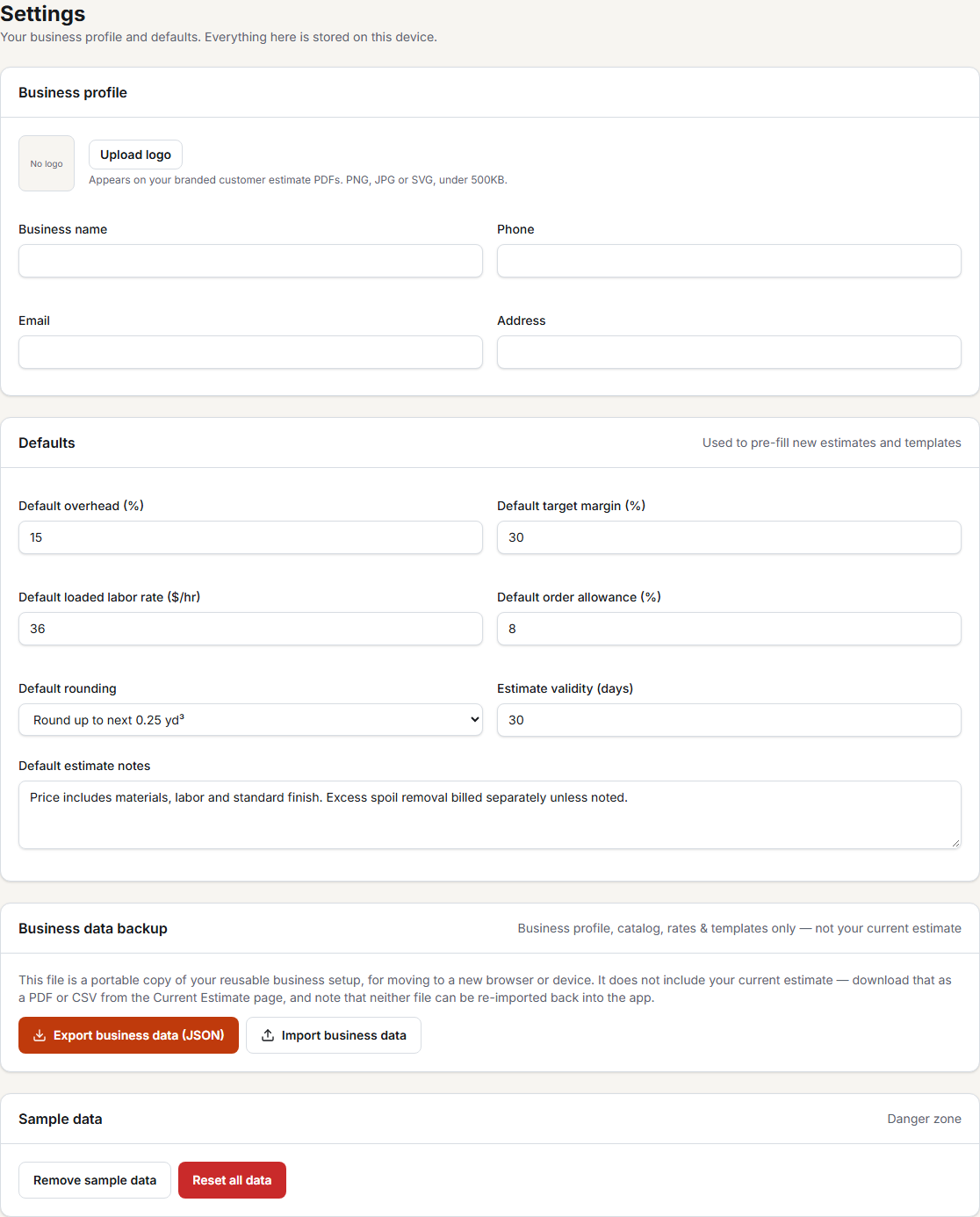
In Settings, enter your defaults: overhead %, target margin %, allowance % and rounding. In Catalog, save your real ready-mix rate, labor rates and equipment costs. Every new estimate and template pulls from these saved numbers, so you fill them in once instead of retyping rates on every job.
Why it matters: Estimates built on guessed or remembered rates are the single most common way contractors quietly underprice a job. Real, saved numbers mean every estimate starts from what things actually cost you, not a rough memory.
- 3
Save your standard rates in Catalog
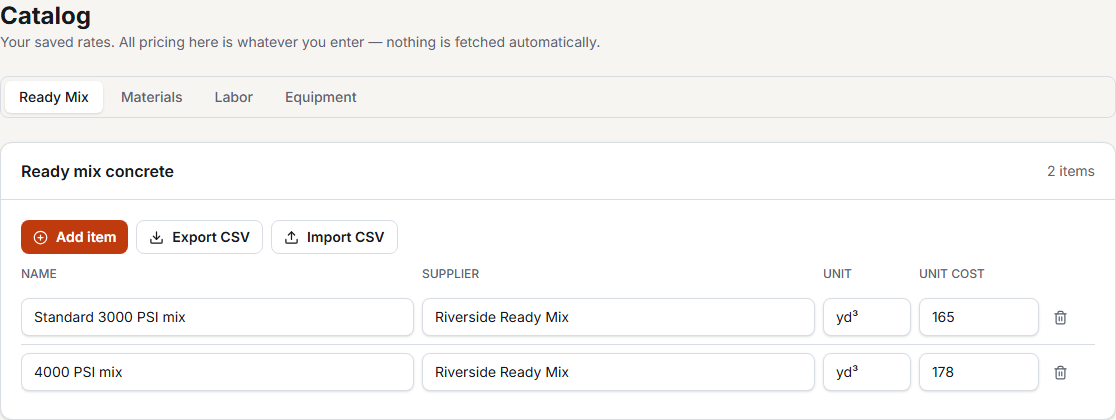
Ready Mix, Materials, Labor and Equipment each get their own tab. Add the rates you actually charge. These populate a new estimate's Costs step automatically. Already have your rates in a spreadsheet? Export CSV once to see the exact column headers Concrete Cost Pro expects (name, supplier, unit, unitCost), then Import CSV to load them all at once instead of typing them in one by one.
Why it matters: Material and labor costs creep up quietly. A rate you haven't touched in months is a margin leak on every single job that uses it. Keeping Catalog current is how you catch that before it costs you.
- 4
Build Templates for jobs you quote often
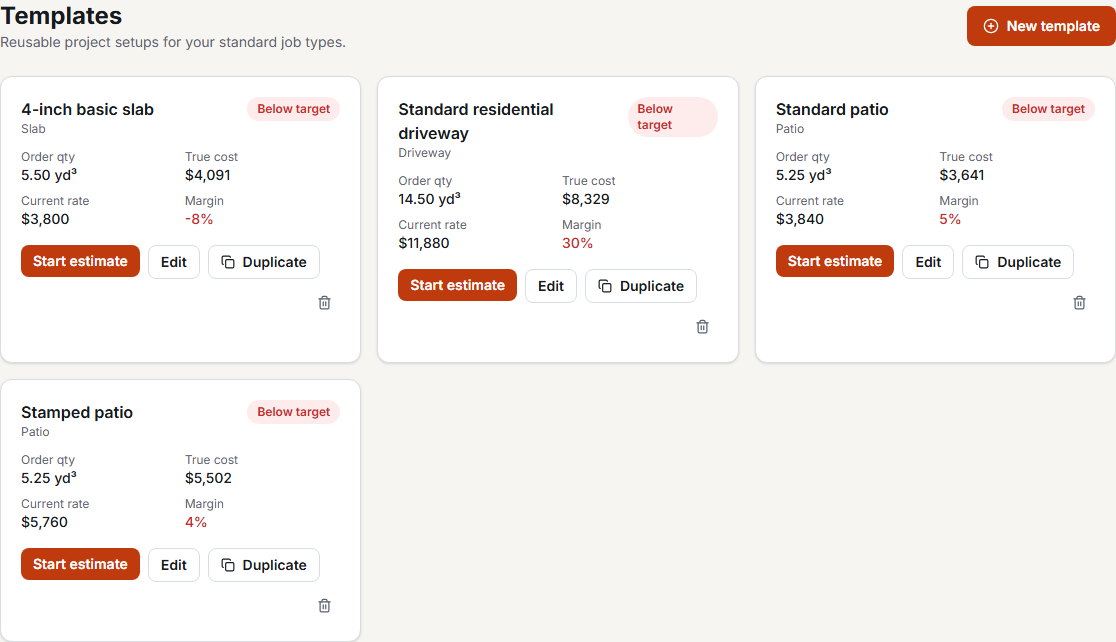
If you regularly quote the same kind of job (driveways, patios, footings), save a Template with typical sections and costs pre-filled. Starting a new estimate from a template means only the dimensions usually need to change.
Why it matters: A faster quote is easier to turn around before a customer moves on, and a template keeps the same cost structure every time: no line item quietly dropped because you were quoting from the truck under deadline pressure.
- 5
Create your Current Estimate
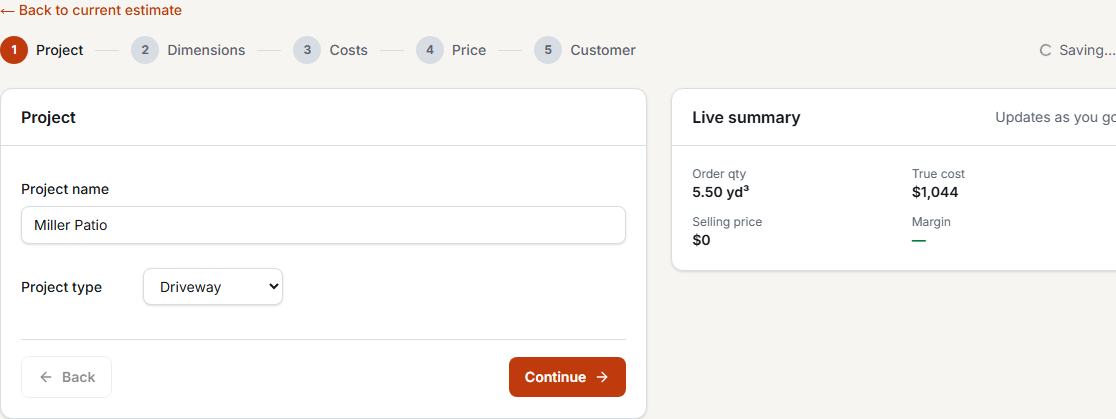
One current estimate at a time, built in a 5-step wizard. It autosaves as you go; watch the status indicator at the top of the page.
Why it matters: The wizard forces every real cost line (forms, reinforcement, equipment, overhead) onto the page before you're allowed to price. That's exactly what a rushed, mental on-site estimate skips, and exactly what quietly erases margin.
1. Project
name and project type
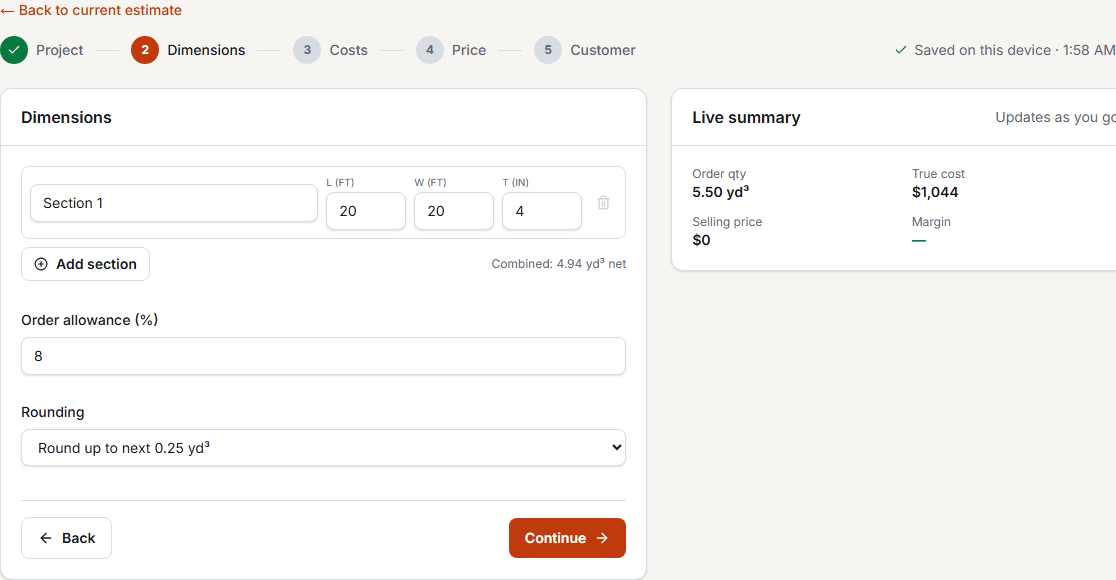
2. Dimensions
one or more sections, plus order allowance and rounding
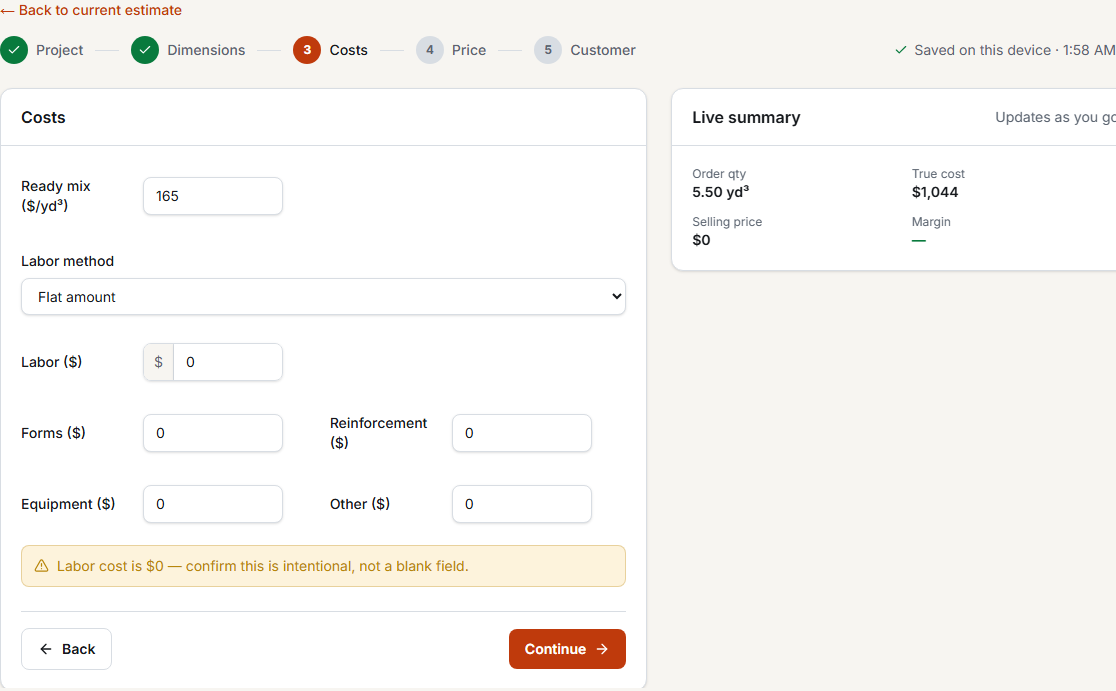
3. Costs
ready-mix, labor, forms, reinforcement, equipment, other
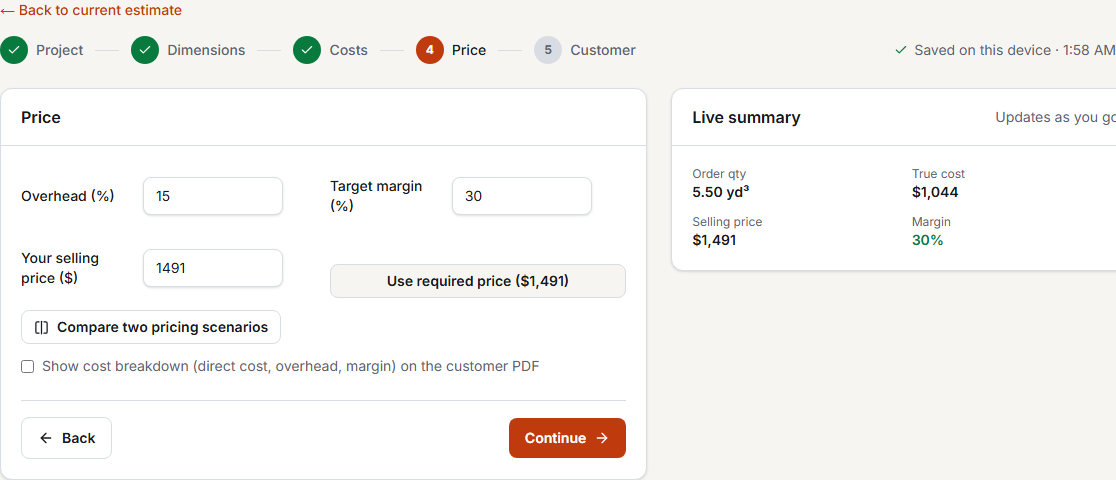
4. Price
overhead, target margin, your selling price, or one click to use the required price the math solves for
5. Customer
name and contact details for the PDF
- 6
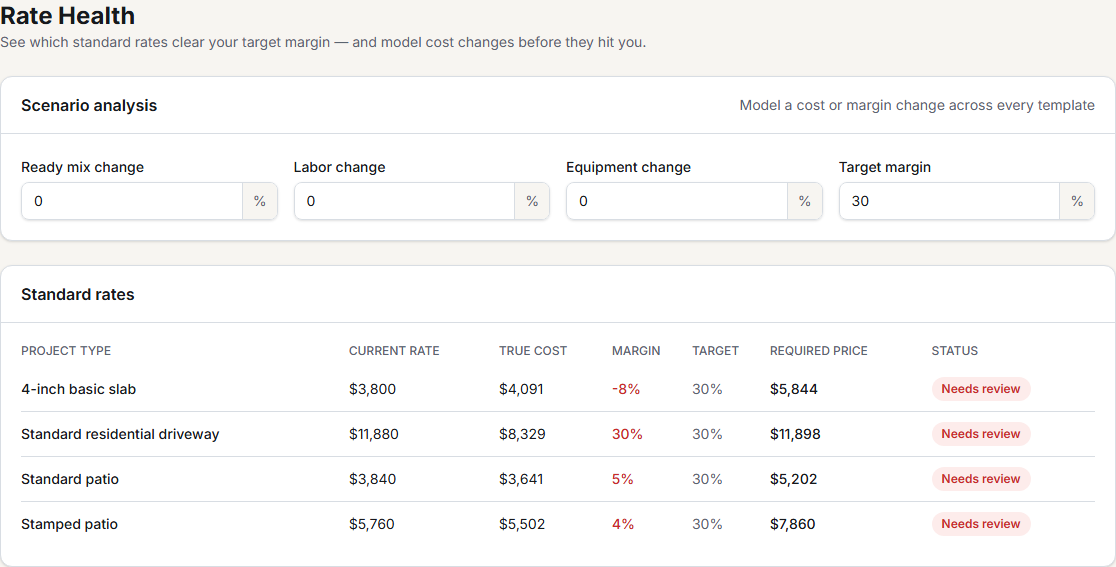
Check Rate Health before you commit to a price
Rate Health audits every saved template against your target margin, and lets you model a cost change (like "ready-mix up 10%") across all of them at once before you decide to update your saved rates.
Why it matters: This catches a rate that's already fallen below your target margin before you send a quote built on it, not after the job's finished when it's too late to do anything about it.
- 7
Send the estimate
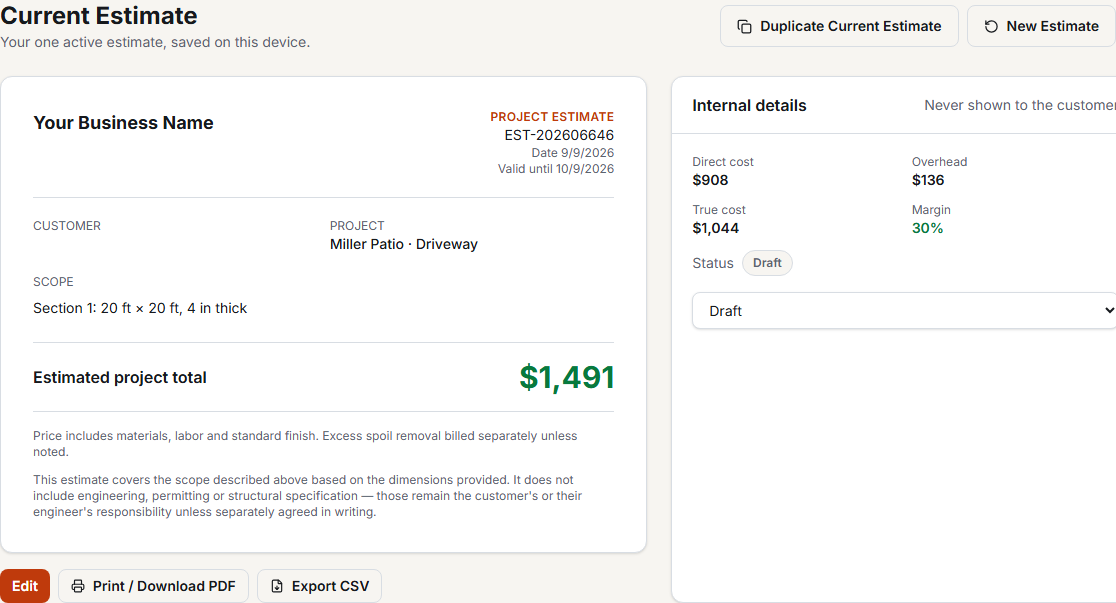
From Current Estimate, print or save a customer-facing PDF. Direct costs, overhead and margin are hidden by default, with an opt-in checkbox if you want to show your breakdown. Export CSV separately for your own records, not the customer's.
Why it matters: A clean, professional PDF that never exposes your internal costs to the customer lets you hold your price with confidence, instead of getting negotiated down once they can see your markup.
- 8
Log the actual result once the job is done
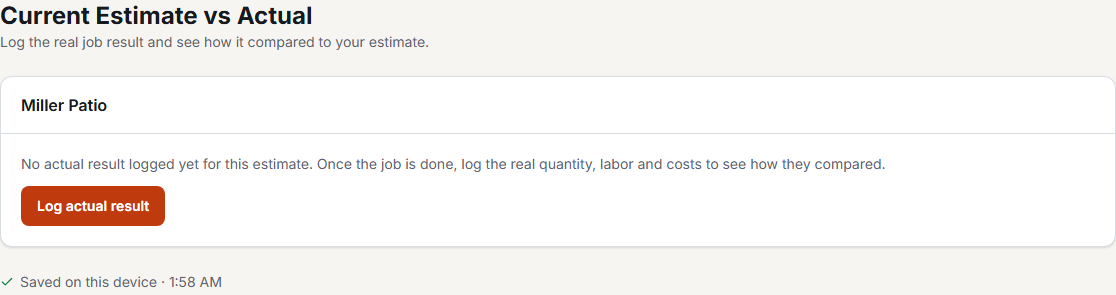
In Estimate vs Actual, enter what the job actually cost and sold for. Concrete Cost Pro compares it against what you estimated, so you see exactly where a job ran over or under before you quote the next one.
Why it matters: This is the only way to know if a job type is chronically underpriced. Skip it, and the same pricing mistake quietly repeats on every similar job you quote after this one.
- 9
Starting the next job
"New Estimate" or "Duplicate Current Estimate" both ask you to confirm first, with a PDF/CSV export offered before anything is replaced, since only one current estimate is kept at a time.
Why it matters: That confirm-and-export safety net means moving to the next job never accidentally destroys this one's numbers before you've captured them for your records.
Lost access, or moved to a new device?
Your license key works on any browser, any device, no login needed. Go to thepricing page, open"Already purchased? Enter your license key", and paste it in. Lost the key itself? Click"Forgot your key?" on that same panel and it's re-sent to the email you paid with.
Common questions
The things most likely to trip you up. Read this before writing in.
I cleared my browser (or switched computers) and my estimate is gone. Can I get it back?
No. Your current estimate lives only in this browser, on this device, with no cloud backup. This is by design (nothing about your business ever leaves your device). Before clearing browser data or switching machines, export the estimate as a PDF or CSV from Current Estimate first. You can recover your license key through Pricing. Your profile, catalog, rates and templates can be restored only if you exported a business-data backup beforehand. See "Lost access?" below.
My total shows $0, or a field has a red outline.
A required field on the Costs or Price step is blank, zero, or invalid (Concrete Cost Pro won't silently treat a blank cost as $0; it flags it so you don't accidentally send a wrong price). Go back to that step and fill in every field with a red outline; the total updates immediately once they're valid.
Does my customer see my costs, overhead or margin on the PDF?
No, never by default. The customer PDF only shows the project scope and the total price unless you explicitly check "Show cost breakdown" on the Price step of the wizard.
Can I have more than one estimate open at a time?
Concrete Cost Pro intentionally keeps one current estimate, not a list. For a second job, either finish and export the current one first, or use "Duplicate Current Estimate" / "New Estimate": both confirm first and offer a PDF/CSV export before replacing anything, so nothing is lost silently.
How do I back up my business data?
Settings → Export business data. That downloads one file covering your business profile, catalog, rates and templates: everything reusable. It does not include your current estimate; export that separately as a PDF or CSV from the Current Estimate page.
How do I restore my data on a new device, or after clearing my browser?
In Settings, use "Import business data" and select an exported business-data JSON file to restore your profile, catalog, rates and templates. It does not restore the current estimate or its actual result. PDF and CSV estimate exports cannot be re-imported; use them as records when manually rebuilding a job if needed.
Where is my data actually stored? Is it sent anywhere?
Everything lives in this browser's local storage, on this device only. Nothing is uploaded to a server: there's no account and no cloud sync, which is also why clearing site data or switching browsers loses anything you haven't exported.
Does it work on my phone?
Yes. The layout adapts down to a phone screen, including the wizard and every tab. For heavy data entry, a laptop or tablet is more comfortable, but nothing is desktop-only.
I lost my license key email. How do I get back in?
Go to Pricing → "Already purchased? Enter your license key" → "Forgot your key?", enter the email you paid with, and it's re-sent automatically, no support ticket needed.
Still stuck? Contact us; we read every message.
Haven't purchased yet?
One payment, lifetime access. No subscription. See pricing.